For the complete documentation index, see llms.txt. Markdown versions of all docs pages are available by appending .md to any docs URL.
OpenAPI
Expose OpenAPI endpoints as MCP tools in the agentgateway UI playground
Expose an OpenAPIOpenAPIA specification for describing RESTful APIs. Agentgateway can connect to MCP servers that expose an OpenAPI specification. server on the agentgateway. Then, your OpenAPI endpoints become available as tools in the agentgateway UI playground.
Before you begin
- Install the
agentgatewaybinary. - Install the
uvPython package manager. - Make sure that you have
docker, such as by installing Docker Desktop. - For ARM64 machines: Install
mavento build the sample Petstore image from source.
Set up your OpenAPI server
Start by setting up your OpenAPI server. You need an OpenAPI spec, such as a JSON or YAML file, as well as a running server instance that hosts the API. These steps use the Swagger Petstore server as an example.
In your OpenAPI schema, make sure to set the URL of the server. If no URL is set, agentgateway defaults to /. Then, the paths in your OpenAPI schema get an extra slash concatenated, which can break requests. For example, /api/v1/ becomes //api/v1/.
To avoid this issue, explicitly set the URL value to / in the OpenAPI schema, such as the following example.
 "servers": [
    {
      "url": "/"
    }
  ]
Sample Petstore server
Run the sample Swagger Petstore server locally. The following steps show use Docker and Maven as an example to pull, build, and run the Petstore server. You can also use your own OpenAPI server and update the steps accordingly.
You can pull and run the sample Petstore server from Docker Hub.
Pull the Docker image for the Petstore server.
docker pull swaggerapi/petstore3:unstableRun the Petstore server on port 8080.
docker run --name swaggerapi-petstore3 -d -p 8080:8080 swaggerapi/petstore3:unstable
Configure the agentgateway
From the directory where you plan to run agentgateway, download and review the OpenAPI schema for the Petstore server.
curl http://localhost:8080/api/v3/openapi.json > openapi.jsonThen, connect agentgateway to the Petstore server. You can use the UI or a configuration file.
From the directory with the
openapi.jsonfile, create a configuration with an emptymcpsection, and start agentgateway. You add the OpenAPI server in the UI.cat <<'EOF' > config.yaml # yaml-language-server: $schema=https://agentgateway.dev/schema/config mcp: port: 3000 targets: [] EOF agentgateway -f config.yamlOpen http://localhost:15000/ui/mcp/servers (MCP > Servers), and click Add server.
Enter
openapifor the Server name, and select the OpenAPI transport.Replace the URL with
localhost:8080, the address of the Petstore server.For Schema source, select File. Then, enter
openapi.jsonfor the Schema. A relative path resolves from the directory where you run agentgateway.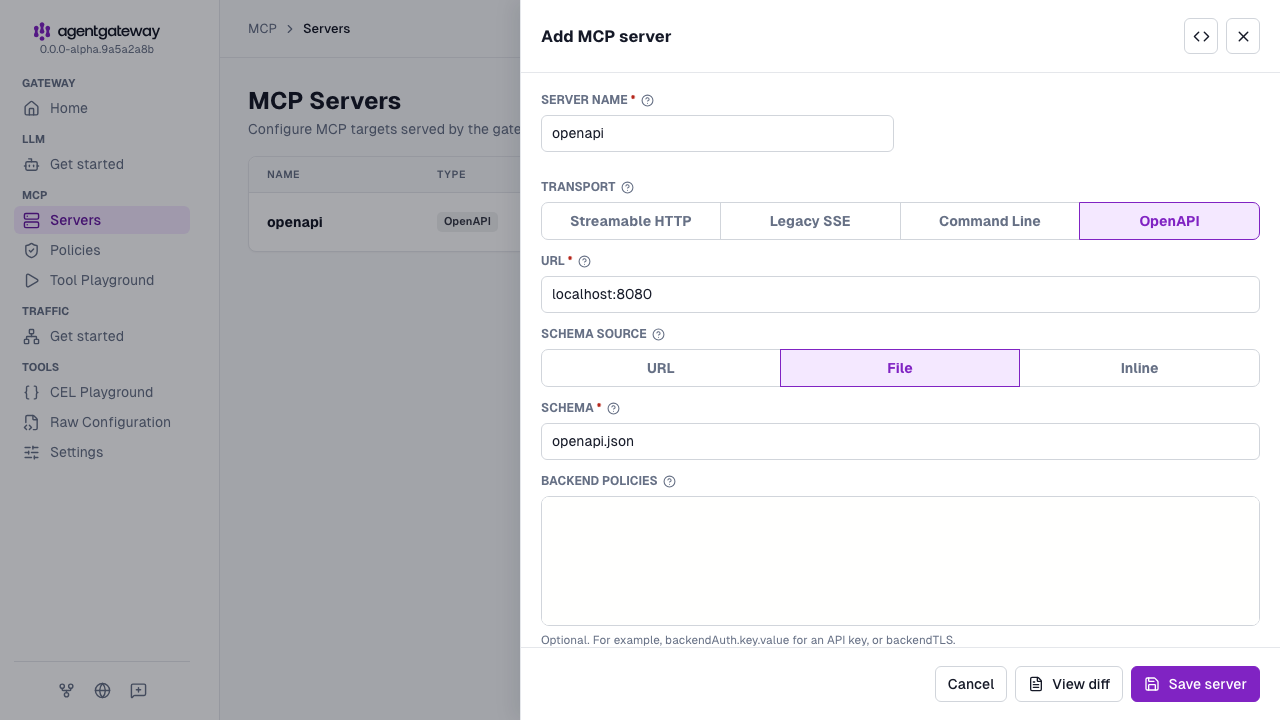
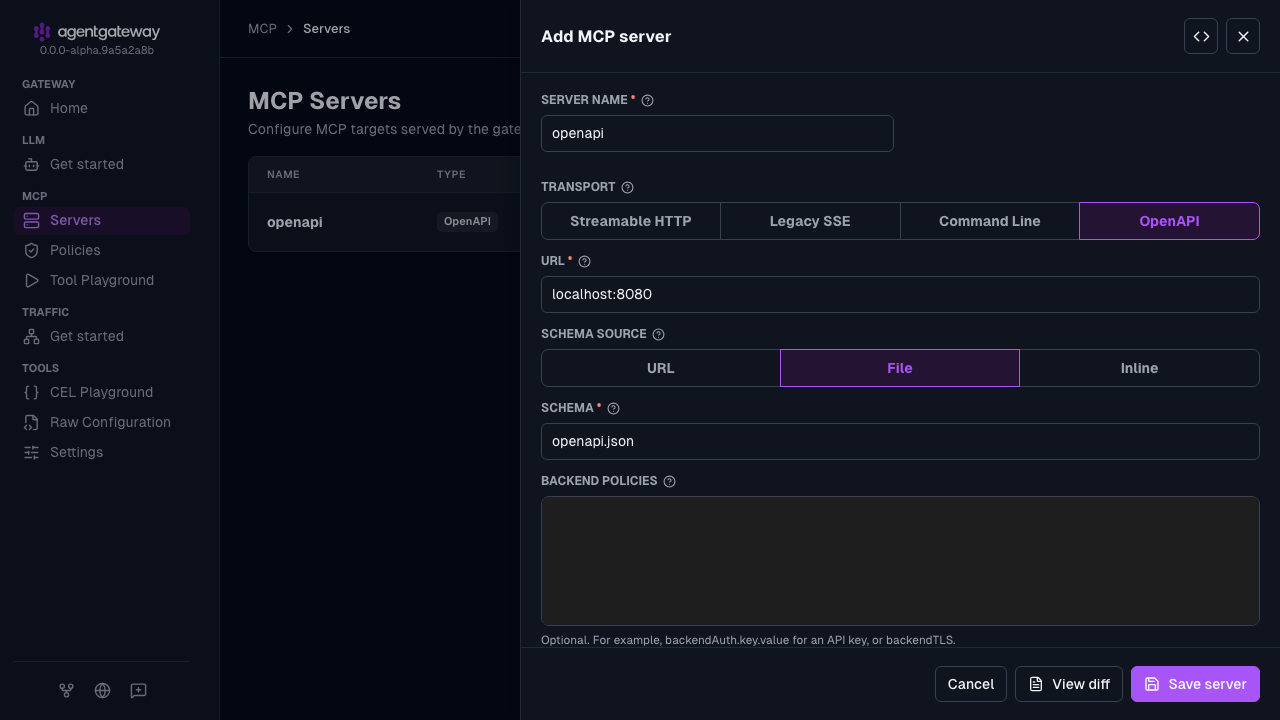
Click Save server.
The UI writes the same openapi target as the Config file tab. The Config file tab also adds a CORS policy for the UI playground. In the UI, you add that policy with Apply CORS when you verify the setup in the next section.
Whether the UI can save depends on your storage mode. For more information, see Save changes from the UI.
Verify access to the Petstore APIs
Open the agentgateway UI to view your listener and backend configuration.
From the navigation menu under MCP, click Tool Playground.
If you see a banner prompting you to allow browser access, click Apply CORS. This adds the UI’s origin to the MCP CORS policy so the playground can open a session, and the configuration reloads automatically.
Click Initialize. The agentgateway UI opens an MCP session and lists the Petstore operations from the OpenAPI spec as tools.
Verify that the Result panel reports the discovered tools, such as
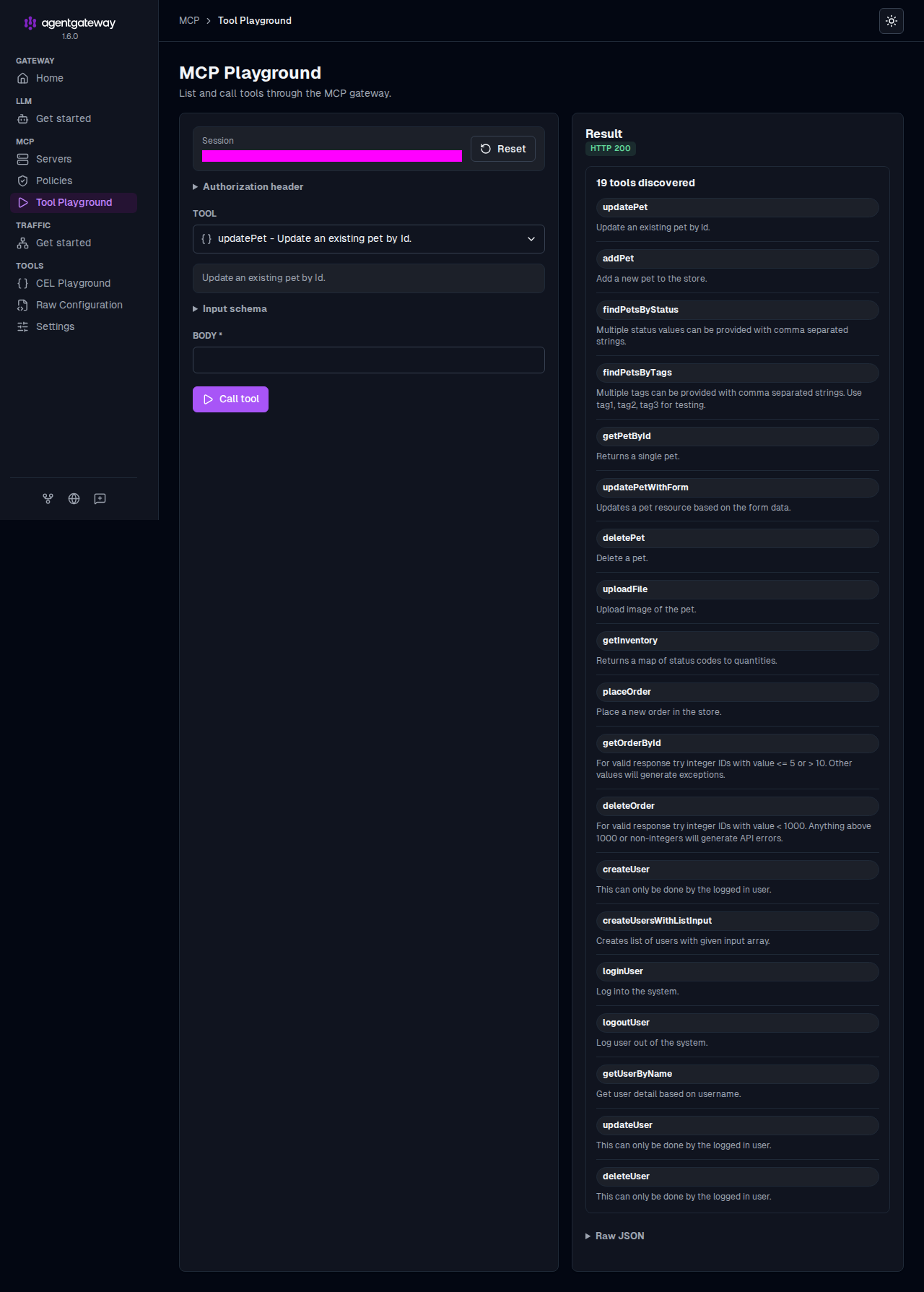
getPetById,findPetsByStatus, andaddPet. Agentgateway generates one tool per operation in the spec, named after the operation’soperationId.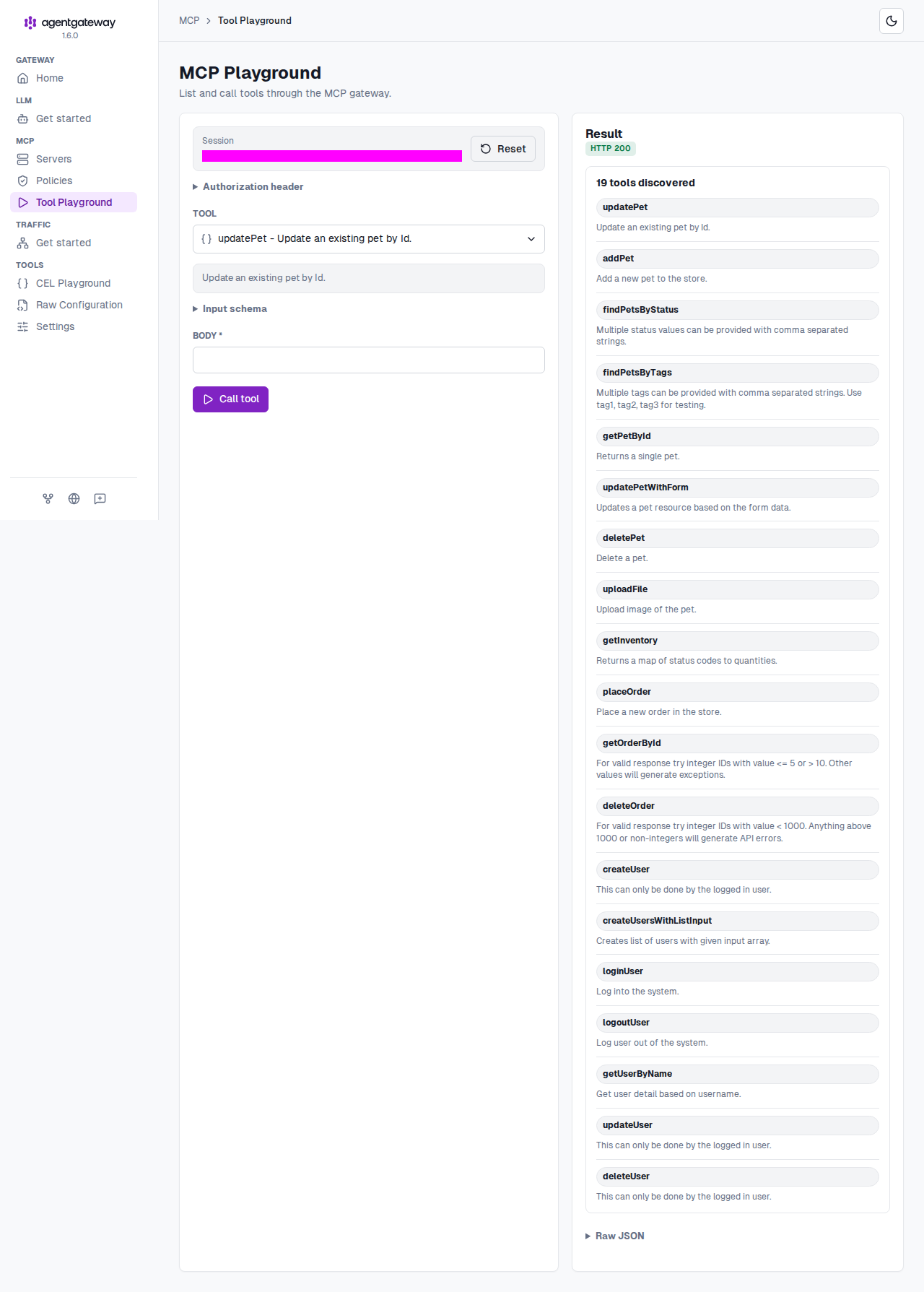
Verify access to a Petstore API.
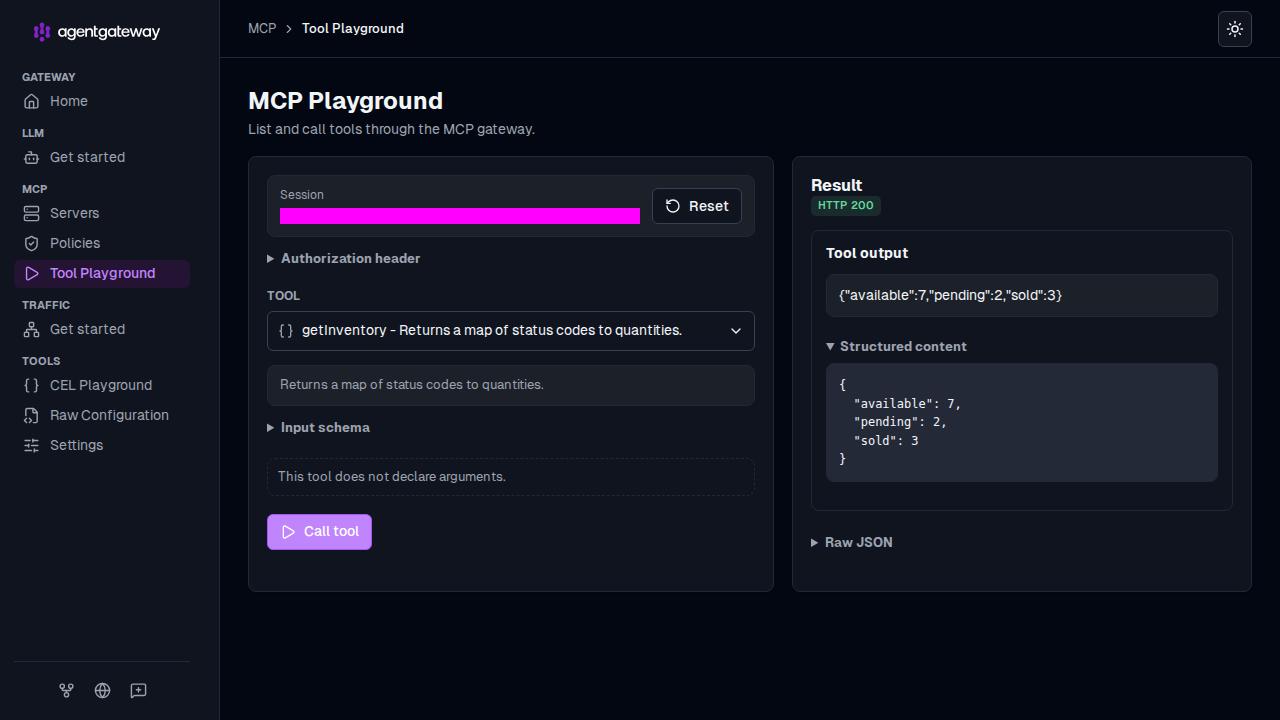
From the Tool dropdown, select the
getInventorytool, which returns the store’s pet inventory by status and takes no parameters.Click Call tool.
Verify that the Result panel returns
HTTP 200and the inventory counts in the Tool output.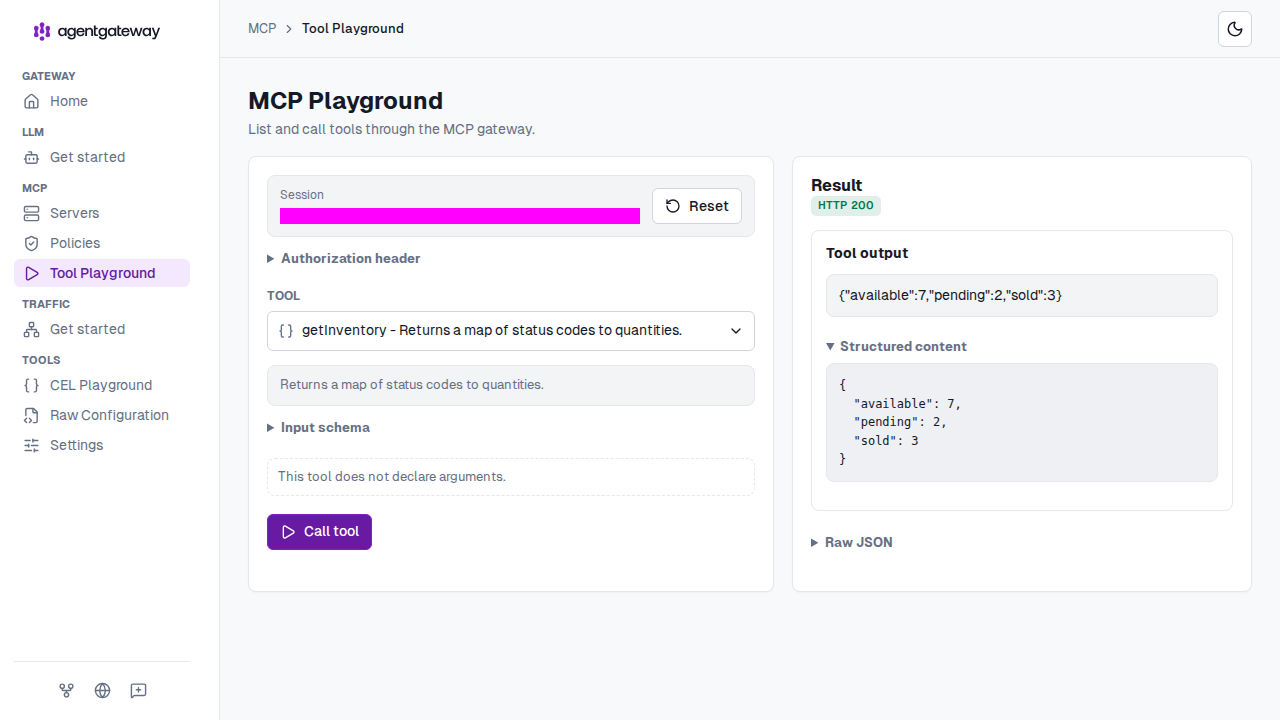
Tool names
Agentgateway generates one MCP tool for each operation in your OpenAPI spec. Each tool is named after the operation’s operationId field. For example, an operation with operationId: addPet becomes an MCP tool named addPet. Make sure each operation in your spec defines a unique operationId so that the generated tool names are predictable and do not collide.
Tool response content
Agentgateway converts OpenAPI responses into MCP tool results or errors based on HTTP status. The Content-Type header and body determine the result content.
| Upstream response | MCP tool result |
|---|---|
JSON object or JSON null | Structured content in structuredContent. The content list also has a text block with the serialized JSON. |
| Other JSON value, such as an array or a string | Structured content that wraps the value in a data field, such as {"data":["cat","dog"]}. |
| Text that is not valid JSON | A text block with the body. |
Binary body with an image/* type | An image block with the base64-encoded body and the response media type, such as image/png. |
Binary body with an audio/* type | An audio block with the base64-encoded body and the response media type, such as audio/wav. |
| Any other binary body | A resource block with the base64-encoded body in blob, the response media type, and URI tool://<tool name>. |
| Empty body | A result with an empty content list. |
Binary responses without a Content-Type header use application/octet-stream.
Agentgateway treats a body as text if either condition holds:
- The
Content-Typeistext/*, has ajson,xml, oryamlsubtype or suffix, or isapplication/javascript,application/x-www-form-urlencoded, orapplication/x-ndjson. - The body is valid UTF-8 and contains no NUL bytes, regardless of
Content-Type.
For example, image/svg+xml is text because of its xml suffix. Agentgateway first tries to parse all text bodies as JSON, including those labeled text/plain.
Error responses
The status code changes the result as follows:
5xxresponses: The client receives HTTP500with JSON-RPC error code-32603(internal error) and messagefailed to send message. Agentgateway logs the upstream status and body.- All other responses, including
4xx: The client receives a tool result with the content types described above. The result setsisErrortofalseand omits the HTTP status code.
To help a model recognize a failed call, return an error body that describes the failure.
Example tool results
These examples show how upstream responses map to MCP tool results.
A
200response withContent-Type: application/jsonand a JSON object body:{"jsonrpc":"2.0","id":2,"result":{"content":[{"type":"text","text":"{\"available\":7,\"pending\":2,\"sold\":1}"}],"structuredContent":{"available":7,"pending":2,"sold":1},"isError":false}}A
200response withContent-Type: application/jsonand a JSON array body:{"jsonrpc":"2.0","id":3,"result":{"content":[{"type":"text","text":"{\"data\":[\"cat\",\"dog\"]}"}],"structuredContent":{"data":["cat","dog"]},"isError":false}}A
200response withContent-Type: text/plainand the bodyOK:{"jsonrpc":"2.0","id":4,"result":{"content":[{"type":"text","text":"OK"}],"isError":false}}A
200response withContent-Type: image/png:{"jsonrpc":"2.0","id":5,"result":{"content":[{"type":"image","data":"iVBORw0KGgoAAAANSUhEUgAAAAEAAAABCAYAAAA=","mimeType":"image/png"}],"isError":false}}A
200response withContent-Type: audio/wav:{"jsonrpc":"2.0","id":6,"result":{"content":[{"type":"audio","data":"UklGRiQAAABXQVZFZm10IBAAAAABAAEAQB8AAEAfAAABAAgAZGF0YQAAAAA=","mimeType":"audio/wav"}],"isError":false}}A
200response withContent-Type: application/pdffrom thegetReporttool:{"jsonrpc":"2.0","id":7,"result":{"content":[{"type":"resource","resource":{"uri":"tool://getReport","mimeType":"application/pdf","blob":"JVBERi0xLjQKJeLjz9MK"}}],"isError":false}}A
204response with an empty body:{"jsonrpc":"2.0","id":8,"result":{"content":[],"isError":false}}A
404response withContent-Type: text/plainand the bodyPet not found:{"jsonrpc":"2.0","id":9,"result":{"content":[{"type":"text","text":"Pet not found"}],"isError":false}}A
500response:{"jsonrpc":"2.0","id":10,"error":{"code":-32603,"message":"failed to send message"}}
Path parameters
OpenAPI path parameters are always required. In the MCP tool schema, each OpenAPI path parameter is required, even when the OpenAPI document omits required or sets it to false.
When a tool call fills a path parameter, the value must be a string or number. String values are percent-encoded before the request is forwarded to the upstream OpenAPI server.
Agentgateway rejects the tool call before it sends any request to the upstream server in the following cases:
- A required path parameter value is missing.
- A path parameter value is empty.
- A path parameter value is neither a string nor a number.
- A string value contains an empty,
., or..path segment when split on/or\.
The client receives HTTP 500 with JSON-RPC error code -32603 (internal error) and message failed to send message:
{"jsonrpc":"2.0","id":2,"error":{"code":-32603,"message":"failed to send message"}}The agentgateway log identifies the parameter and cause. For example:
error="mcp: failed to send message: invalid request: path parameter 'petId' is missing"
Other configurations
Schema URL
Fetch the OpenAPI schema from a remote URL. Agentgateway retrieves the schema at startup.
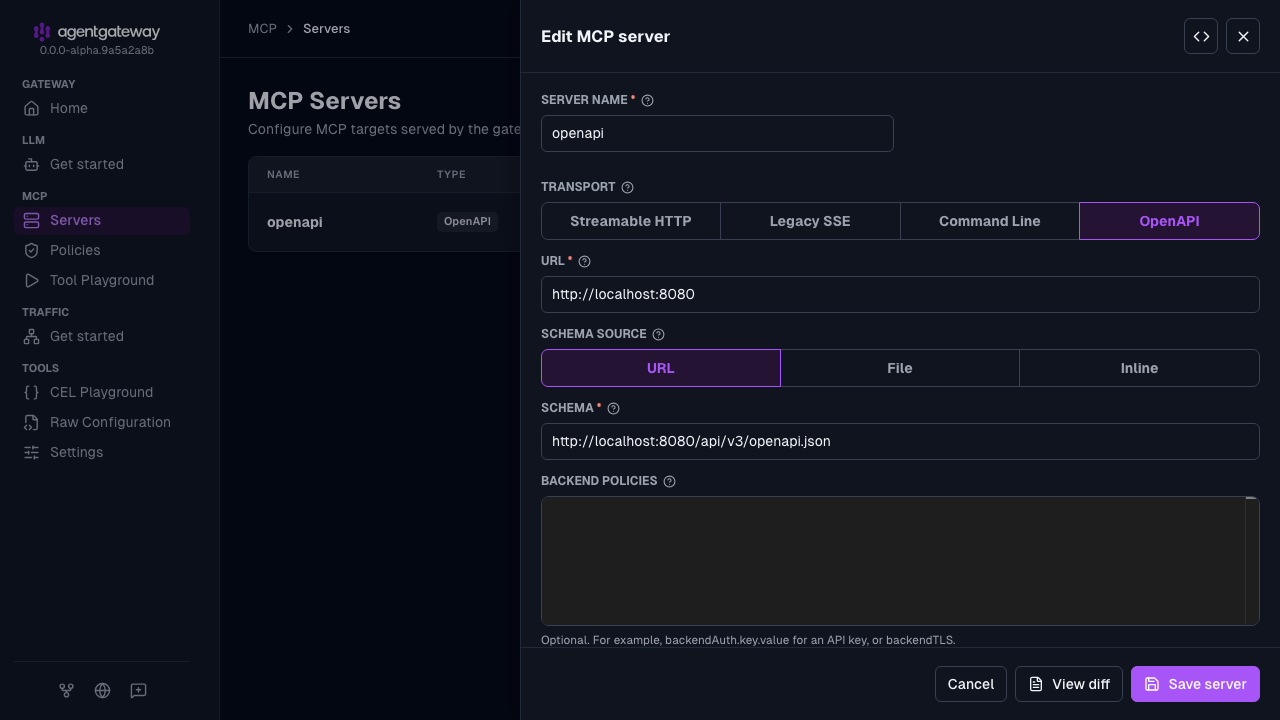
Open http://localhost:15000/ui/mcp/servers (MCP > Servers). For the
openapiserver that you added in Configure the agentgateway, click the Edit server icon.For Schema source, select URL.
Replace the Schema value with the schema URL, such as
http://localhost:8080/api/v3/openapi.json.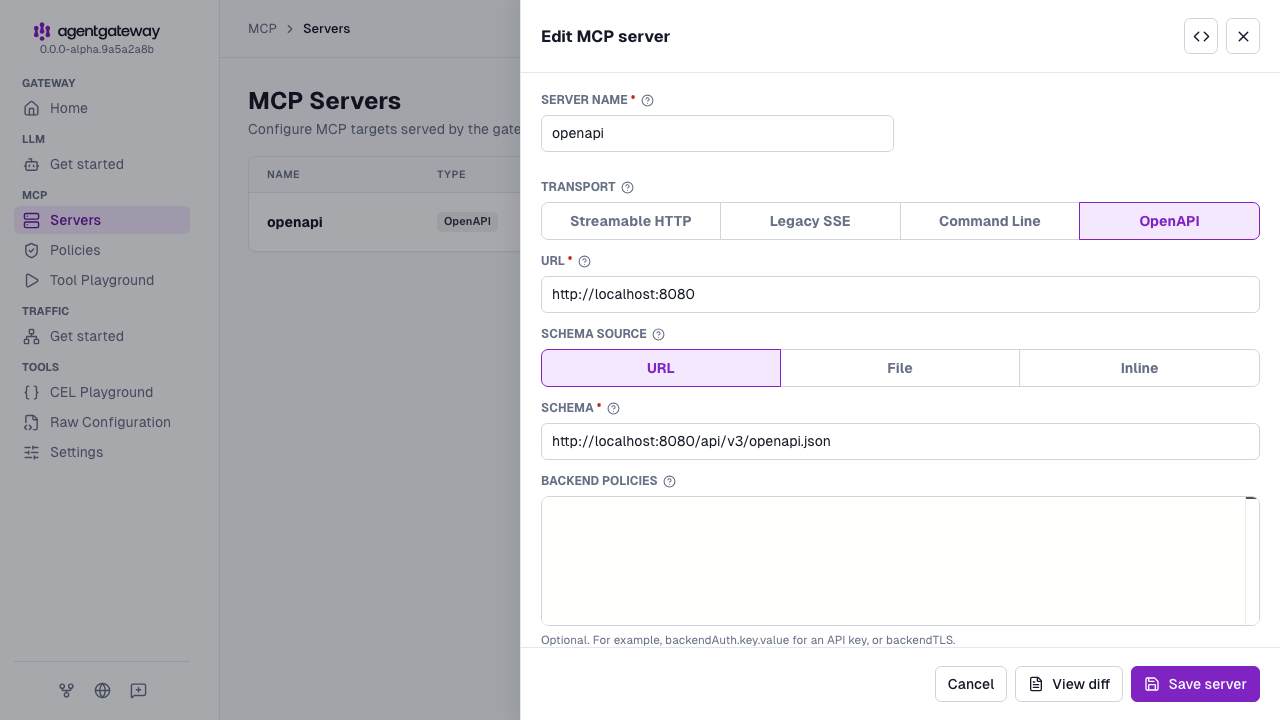
Click Save server.
Inline schema
Embed the OpenAPI schema directly as an inline string.
Open http://localhost:15000/ui/mcp/servers (MCP > Servers). For the
openapiserver that you added in Configure the agentgateway, click the Edit server icon.For Schema source, select Inline.
In the Schema editor, replace any existing value with your OpenAPI document, such as the JSON in the Config file tab. The editor keeps the previous schema path or URL until you replace it.
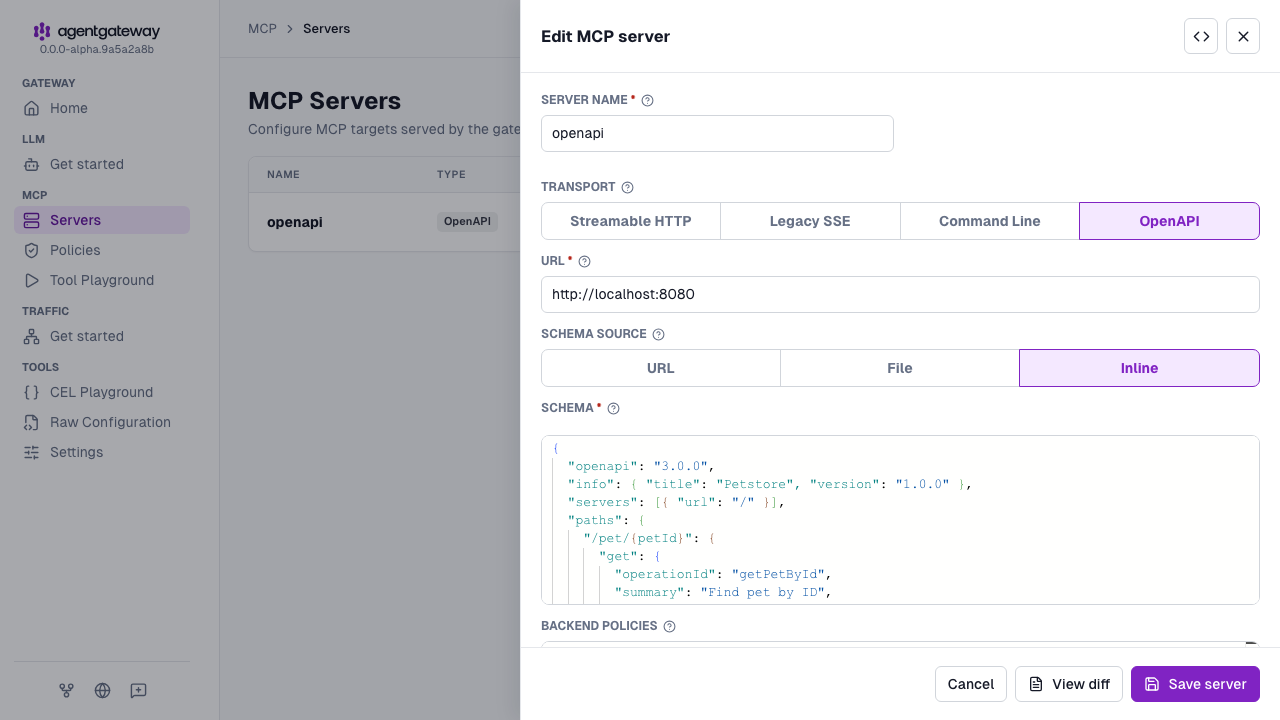
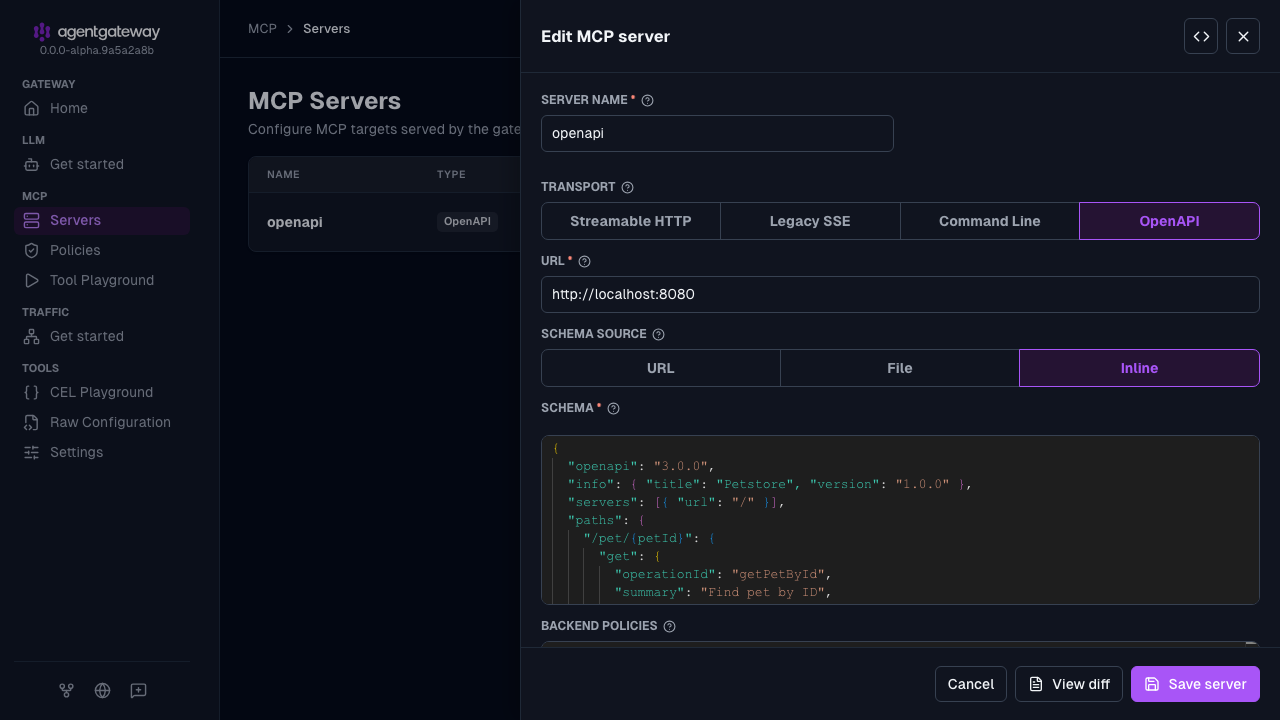
Click Save server.
The UI saves the document as a multi-line string in the schema field, as in the Config file tab.
Override the schema server path
By default, operation paths use the path from the OpenAPI schema’s server URL. To replace that prefix without editing the schema, set a non-root path in the target’s host URI. If the target uses host/port/path or backend, set path instead.
# yaml-language-server: $schema=https://agentgateway.dev/schema/config
mcp:
  port: 3000
  targets:
  - name: openapi
    openapi:
      host: https://example.com/api
      schema:
        url: https://example.com/openapi.json
With this configuration, an operation at /users is forwarded to https://example.com/api/users. Config validation rejects paths that do not start with a single /. Validation also rejects paths that contain a query string, fragment, or backslash.
If the path is omitted, empty, or /, the target keeps using the schema’s server path. To route to root when the schema has a server path, update the schema’s server URL to /.
Stateless sessions
OpenAPI backends are inherently stateless because they translate standard REST endpoints into MCP tools. You can set statefulMode: stateless on the MCP backend to skip session tracking. In stateless mode, the gateway automatically wraps each request with an initialization sequence so the upstream processes every request independently.
Open http://localhost:15000/ui/mcp/servers (MCP > Servers), and click Settings.
For State mode, select Stateless.
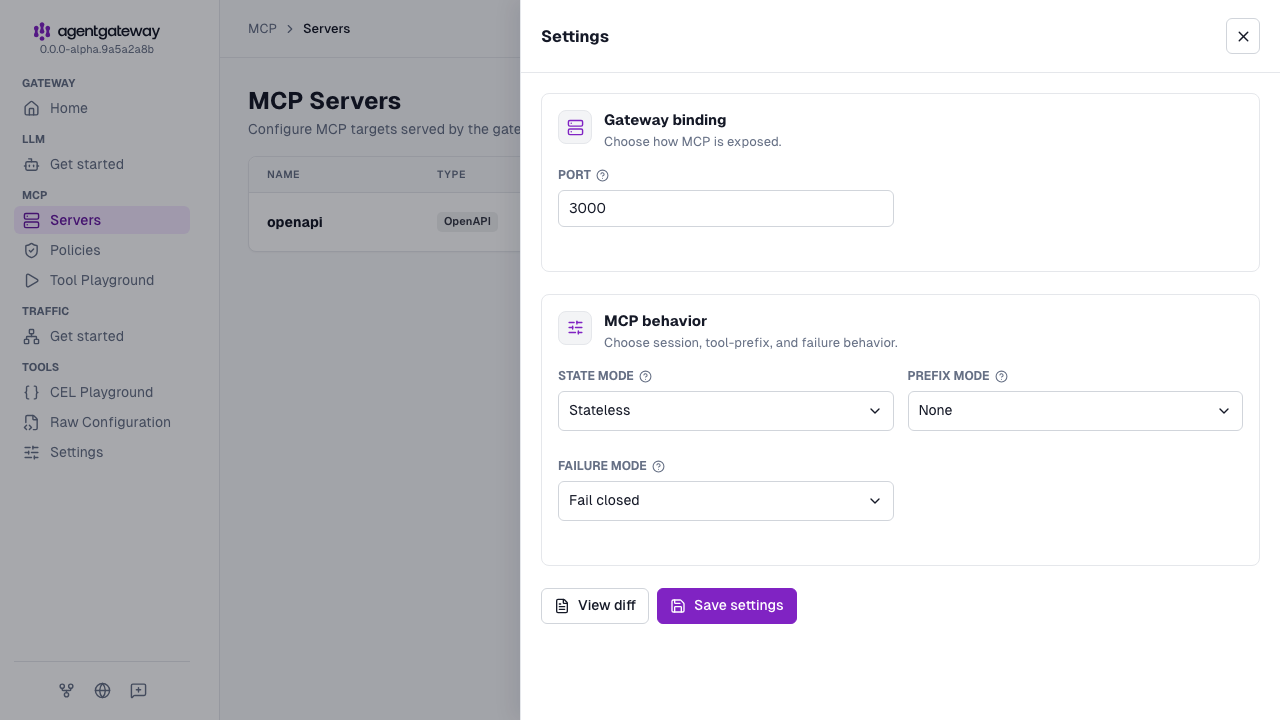
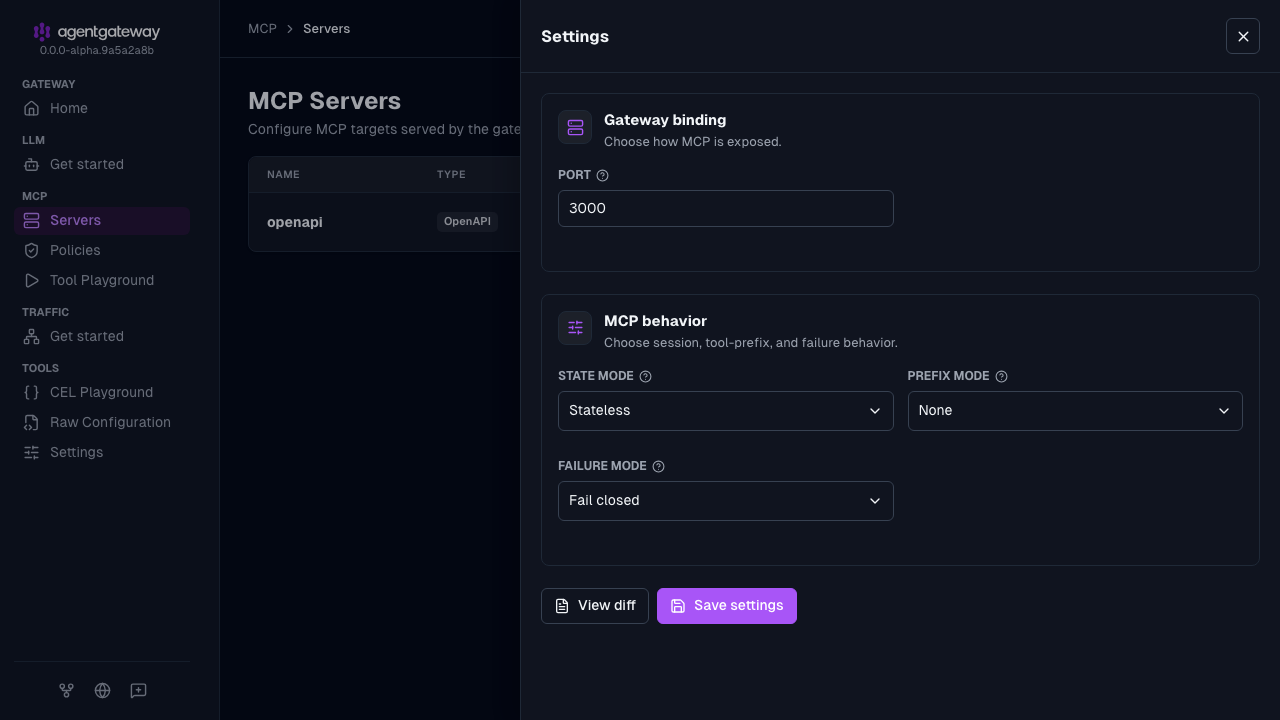
Click Save settings.
The UI sets statefulMode to stateless, as in the Config file tab. It also sets failureMode to failClosed and writes an empty gateways list.