For the complete documentation index, see llms.txt. Markdown versions of all docs pages are available by appending .md to any docs URL.
Request matching
Verified : Code examples on this page have been automatically tested and verified.Match incoming requests by path, headers, methods, and query parameters.
Based on the route schema (see the configuration reference for the full field reference and schema validation for IDE integration), you can configure the following matchingMatchingThe process of determining which route should handle an incoming request based on criteria such as path, hostname, headers, query parameters, or HTTP methods. conditions for HTTP or TCP routes.
Request matching is a routing-based feature: routes and their match conditions are configured in the top-level routes section and attached to a gateway. The simplified llm configuration supports header-based model matching (llm.models[].matches), but path, method, and query matching require routing-based configuration. For more information about the configuration styles, see Routing-based configuration.
HTTP routes
For routes configured with HTTP or HTTPS listeners, you can configure the following matching conditions. These matching conditions do not apply to TLS listeners, which use TCP routes and only support hostname-based matching.
Path matching
Match incoming requests based on their path using one of the following strategies.
If no path match is specified, the default is to match all paths (/).
| Type | Example | Description |
|---|---|---|
| Exact | { "exact": "/foo/bar" } | Matches only the exact path /foo/bar |
| Prefix | { "pathPrefix": "/foo" } | Matches any path starting with /foo |
| Regex | { "regex": "/foo/[0-9]+" } | Matches the full path with a regular expression |
Note
Only one of exact, pathPrefix, or regex can be specified per path matcher.
For regex path matching, the regular expression applies to the full request path. For example, /foo/[0-9]+ matches /foo/123, but not /foo/123/bar.
You can configure path matching in the UI or in your configuration file.
To add a route with a path match in the UI, follow these steps. The steps create the same api-exact route as the Exact path matching example in the Config file tab.
Open Traffic > Routes, and click Add route.
Select the Gateway, such as
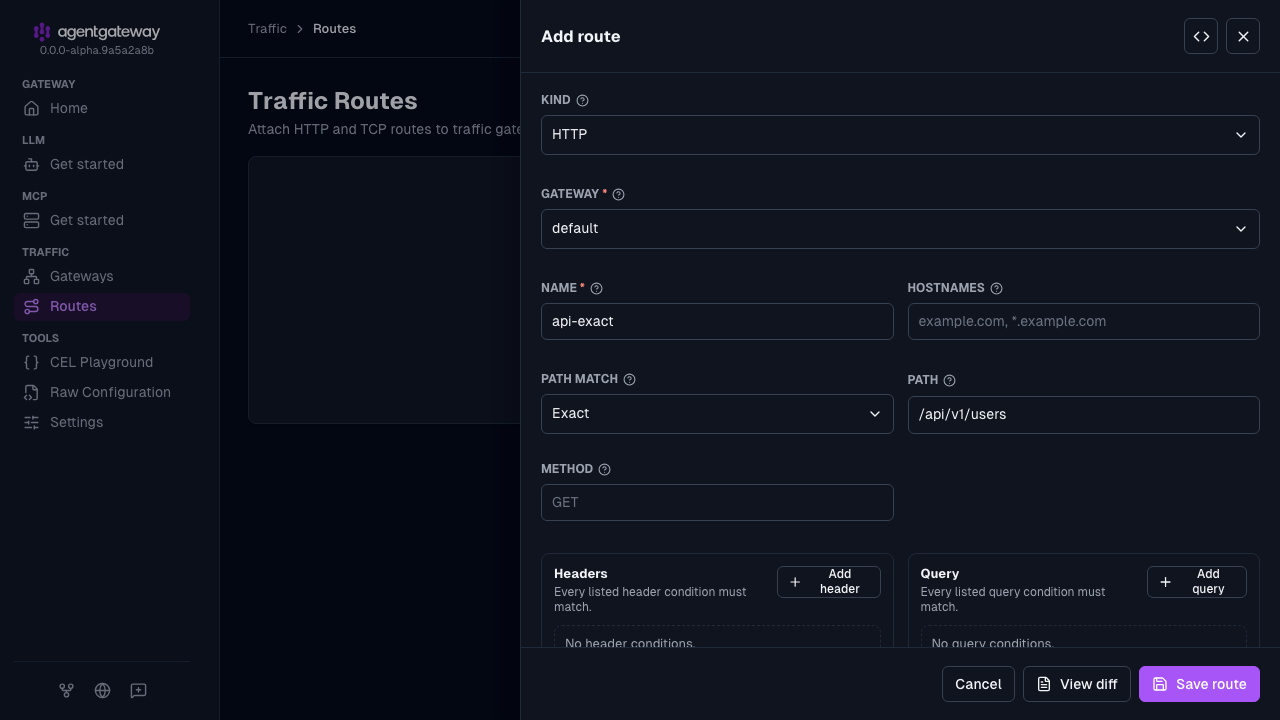
default, and enterapi-exactfor the Name.Select Exact as the Path match type. For the other examples, select Prefix or Regex.
Enter
/api/v1/usersfor the Path.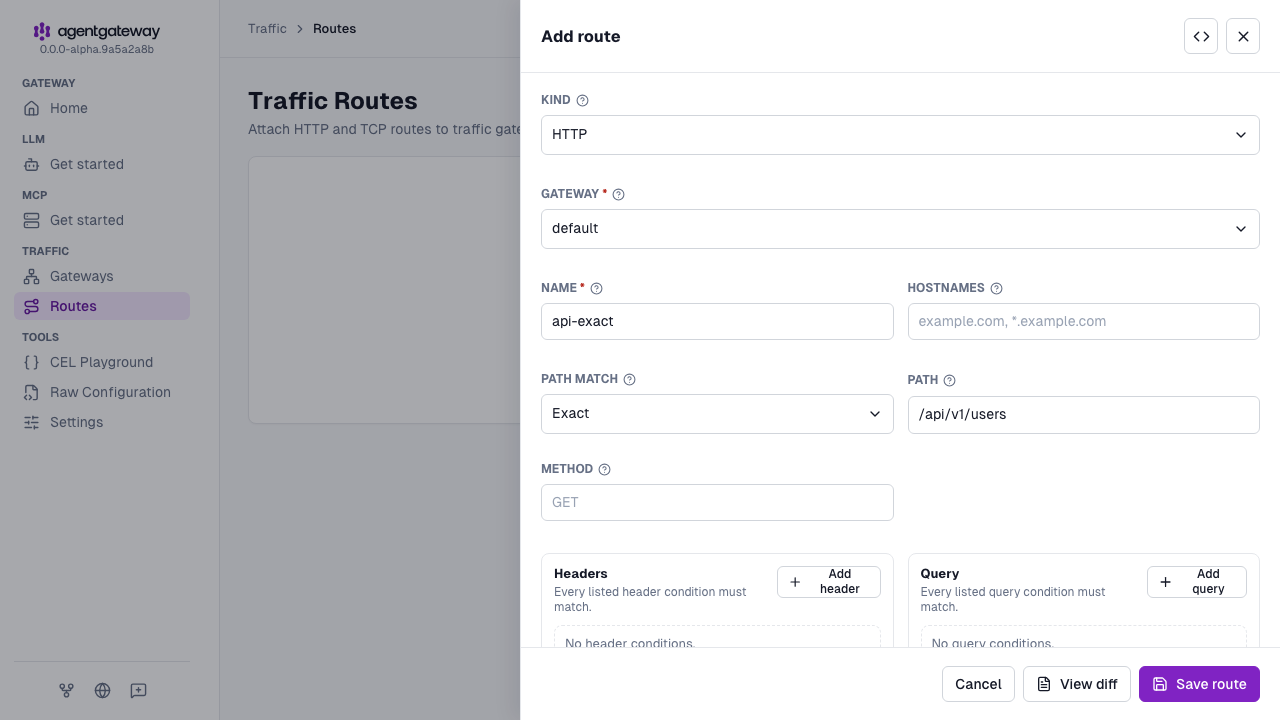
In the Backends section, click Add backend, and enter
api.example.com:8080for the Host.Click Save route.
To add a path match to an existing route, click the Edit route icon for the route instead. The UI edits only the first entry in matches. To add more entries, click the Raw icon (<>) in the drawer header and edit the YAML, or use the Config file tab.
Whether the UI can save depends on your storage mode. For more information, see Save changes from the UI.
Header matching
Match incoming requests based on HTTP headers included in the request.
- Exact match:
{ "name": "Authorization", "value": { "exact": "Bearer token" } } - Regex match:
{ "name": "Authorization", "value": { "regex": "^Bearer .*" } }
You can configure header matching in the UI or in your configuration file.
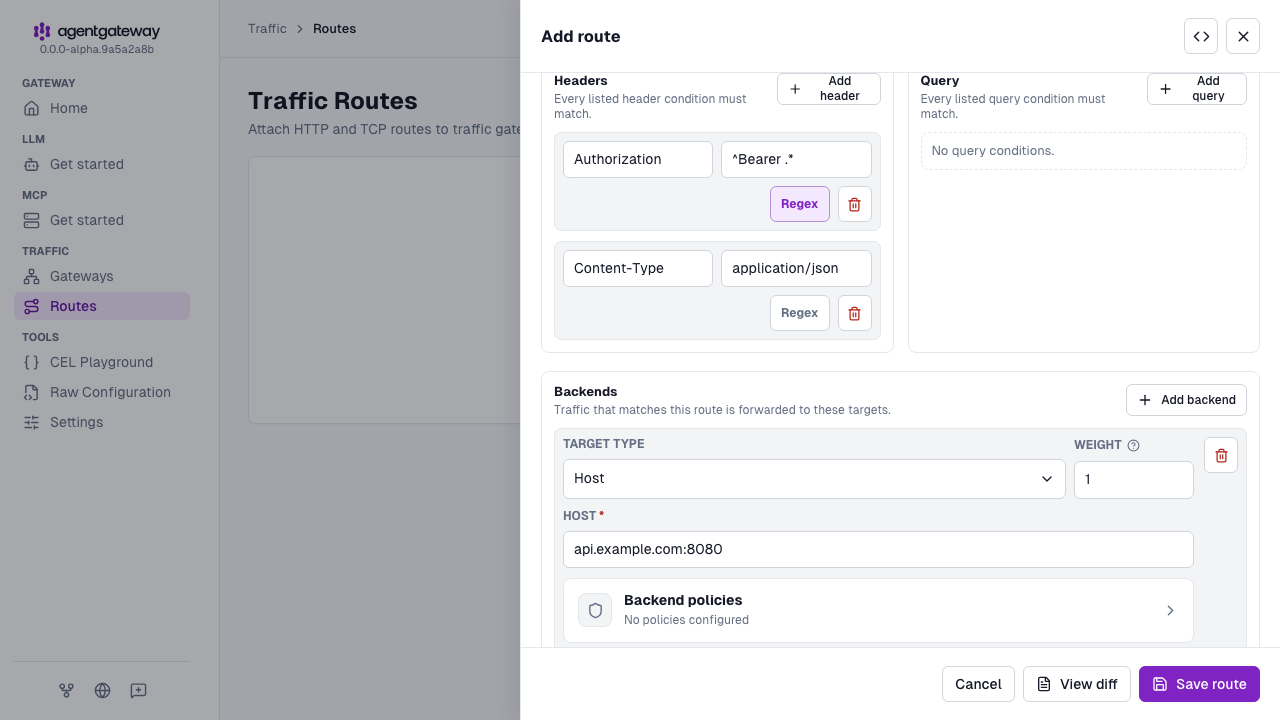
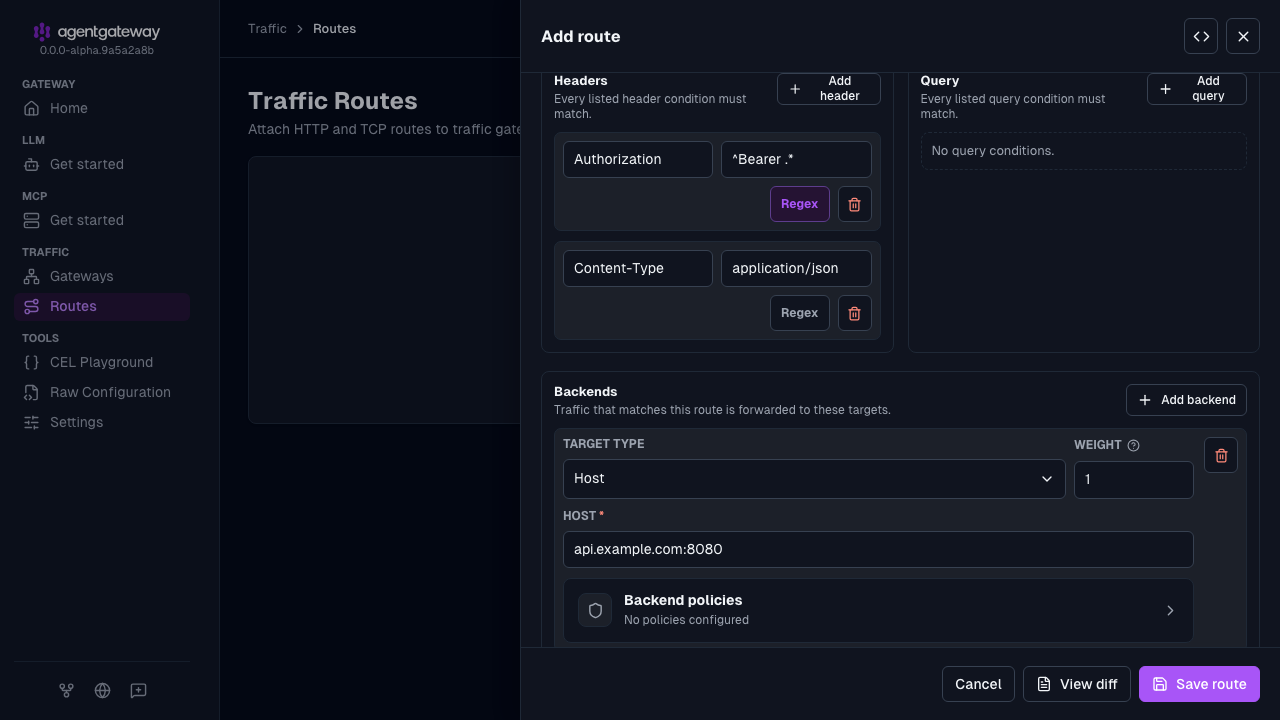
The following steps create the same multi-header route as the Multiple header matching example in the Config file tab.
Open Traffic > Routes, and click Add route.
Select the Gateway, enter
multi-headerfor the Name, and enter/apifor the Path.In the Headers section, click Add header for each header condition.
- Enter
Authorizationfor the header name and^Bearer .*for the value. Then, click Regex to match the value as a regular expression. - Enter
Content-Typefor the header name andapplication/jsonfor the value. Leave Regex off for an exact match.
- Enter
In the Backends section, click Add backend, and enter
api.example.com:8080for the Host.Click Save route.
A request must match every header condition in the list. The UI edits only the first entry in matches. To add more entries, click the Raw icon (<>) in the drawer header and edit the YAML, or use the Config file tab.
Method matching
Optionally restrict matches to specific HTTP methods.
{ "method": { "method": "GET" } }You can configure method matching in the UI or in your configuration file.
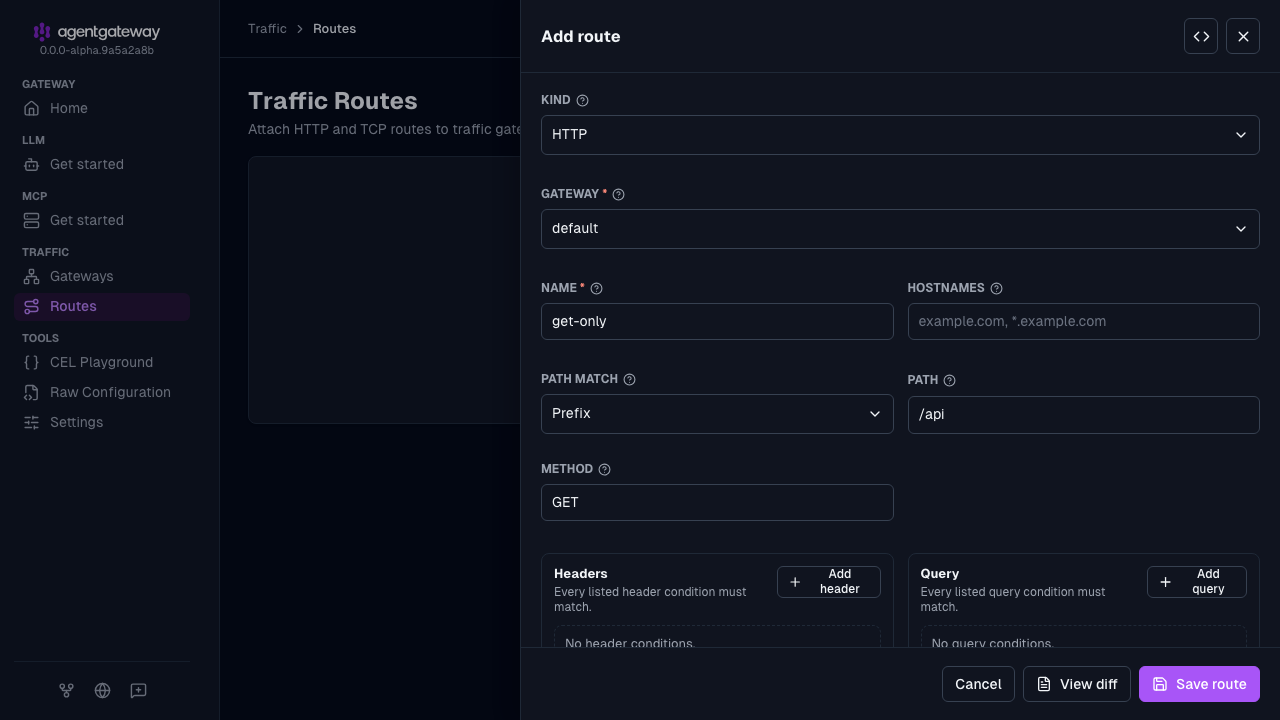
The following steps create the same get-only route as the GET method matching example in the Config file tab.
Open Traffic > Routes, and click Add route.
Select the Gateway, enter
get-onlyfor the Name, and enter/apifor the Path.Enter
GETfor the Method.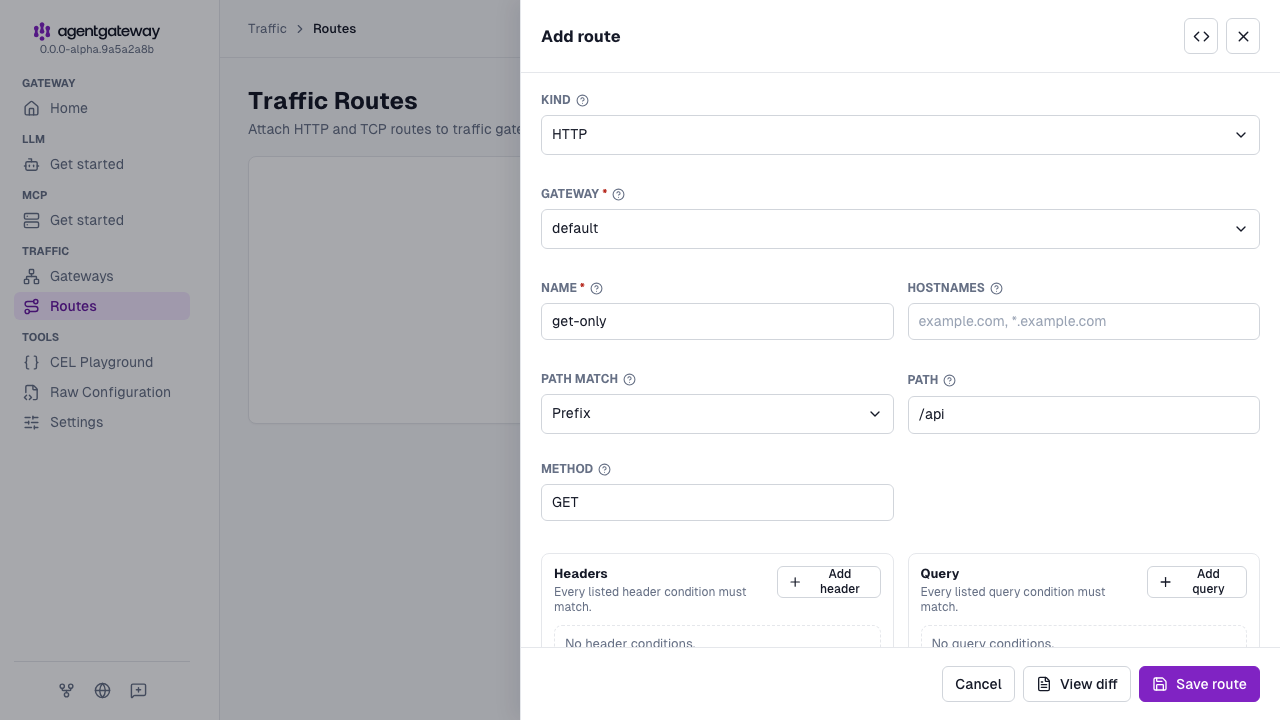
In the Backends section, click Add backend, and enter
api.example.com:8080for the Host.Click Save route.
To send different methods to different backends, add one route for each method. The UI edits only the first entry in matches. To add more entries, click the Raw icon (<>) in the drawer header and edit the YAML, or use the Config file tab.
Query parameter matching
Match on query parameters, either by exact value or regex.
- Exact:
{ "name": "version", "value": { "exact": "v1" } } - Regex:
{ "name": "version", "value": { "regex": "^v[0-9]+$" } }
You can configure query parameter matching in the UI or in your configuration file.
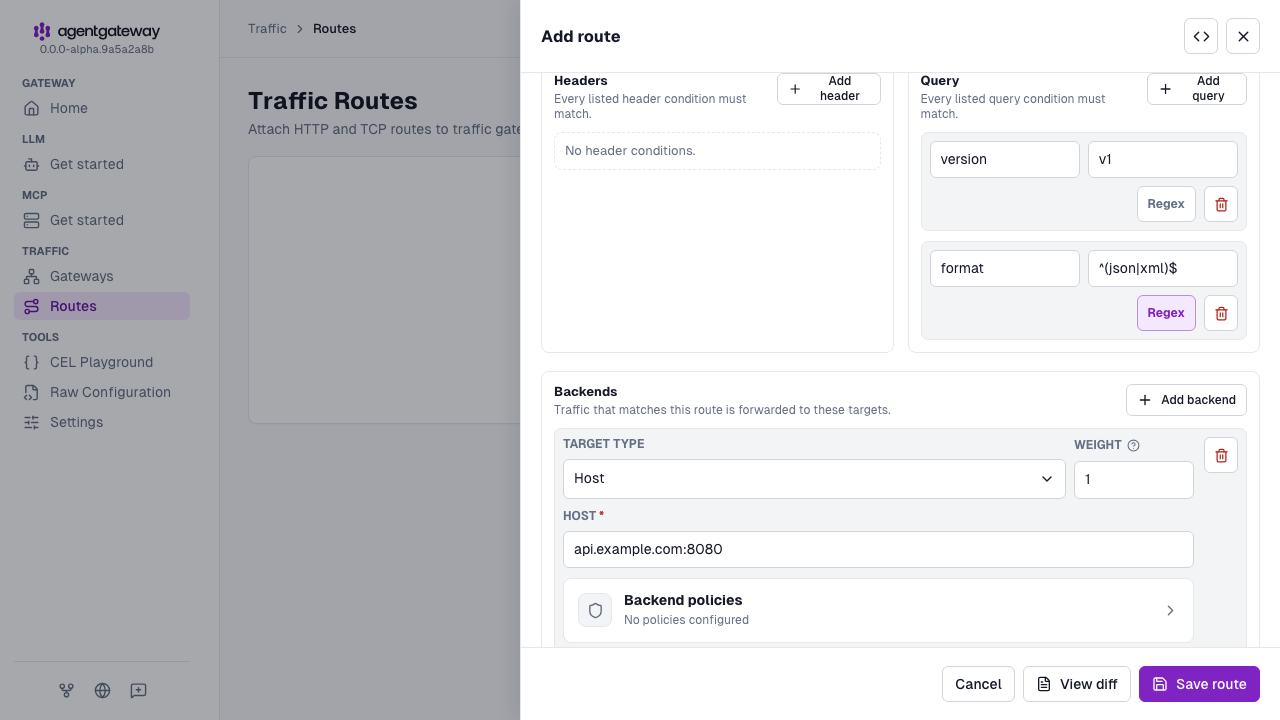
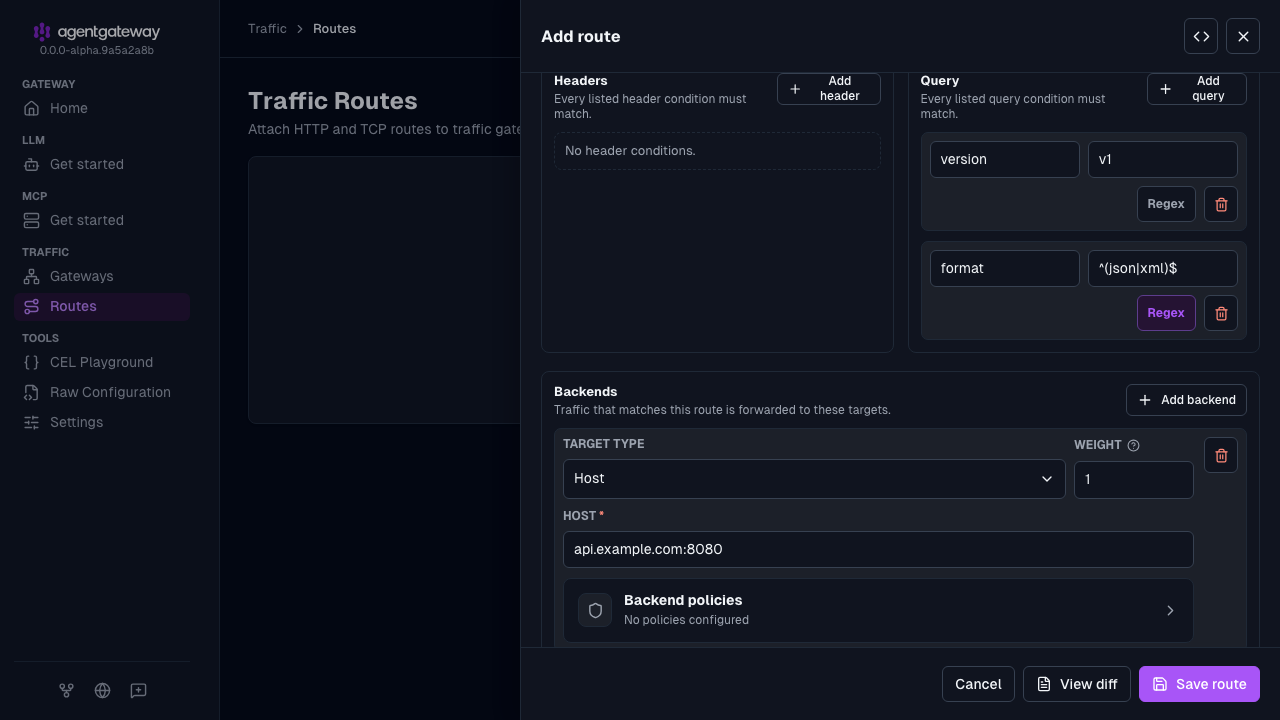
The following steps create the same multi-query route as the Multiple query parameters example in the Config file tab.
Open Traffic > Routes, and click Add route.
Select the Gateway, enter
multi-queryfor the Name, and enter/apifor the Path.In the Query section, click Add query for each query condition.
- Enter
versionfor the query name andv1for the value. Leave Regex off for an exact match. - Enter
formatfor the query name and^(json|xml)$for the value. Then, click Regex to match the value as a regular expression.
- Enter
In the Backends section, click Add backend, and enter
api.example.com:8080for the Host.Click Save route.
A request must match every query condition in the list. The UI edits only the first entry in matches. To add more entries, click the Raw icon (<>) in the drawer header and edit the YAML, or use the Config file tab.
Combined matching
You can combine multiple matching conditions to create a more specific route, such as the following example.
# yaml-language-server: $schema=https://agentgateway.dev/schema/config
gateways:
  default:
    port: 3000
routes:
- name: comprehensive-match
  matches:
  - path:
      pathPrefix: "/api/v1"
    method: "GET"
    headers:
    - name: "Authorization"
      value:
        regex: "^Bearer .*"
    query:
    - name: "format"
      value:
        exact: "json"
  backends:
  - host: api.example.com:8080
TCP routes
For routes configured with TCP listeners, you can configure the following matching conditions.
Hostname matching
Match incoming requests based on the hostname included in the request. This is primarily used for TLS termination scenarios.
The following steps assume that you have a TCP gateway named database-proxy. To add one, see TCP listeners.
Open Traffic > Routes, and click Add route.
Select TCP as the Kind, and select the
database-proxyGateway.Enter
database-backendfor the Name anddb.example.comfor the Hostnames. To match more than one hostname, separate them with commas.In the Backends section, click Add backend, and enter
postgres.example.com:5432for the Host.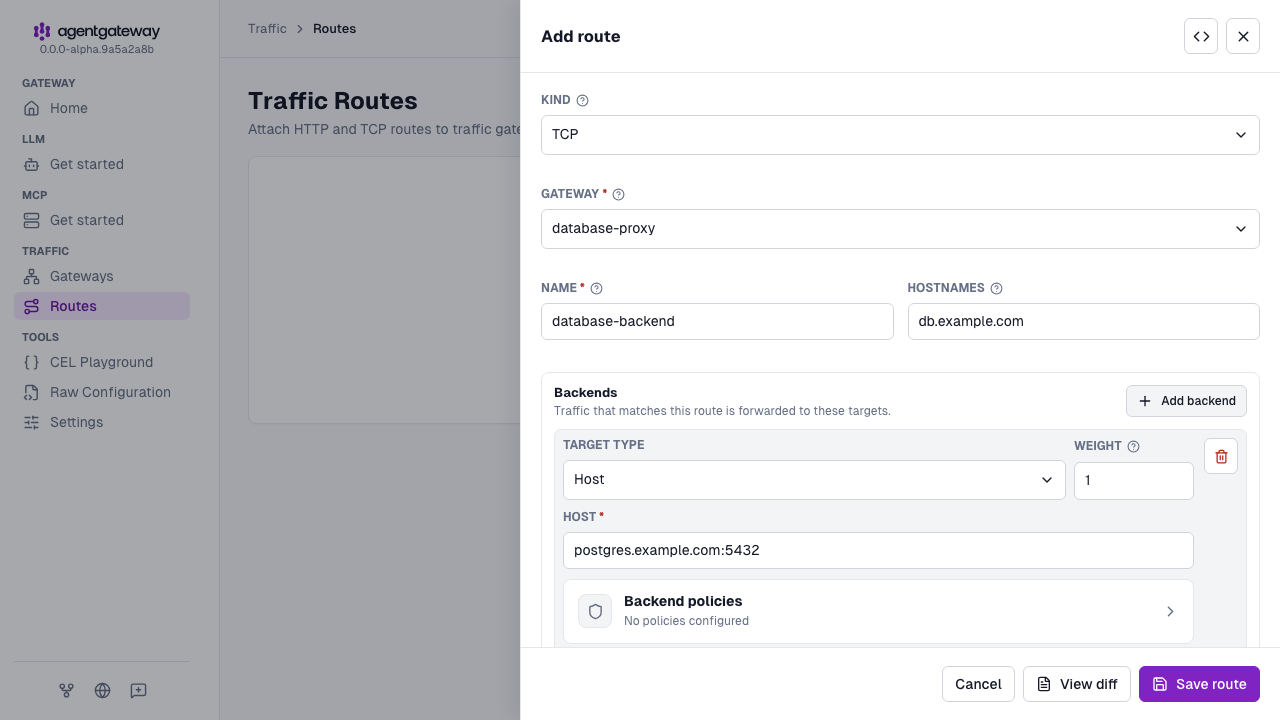
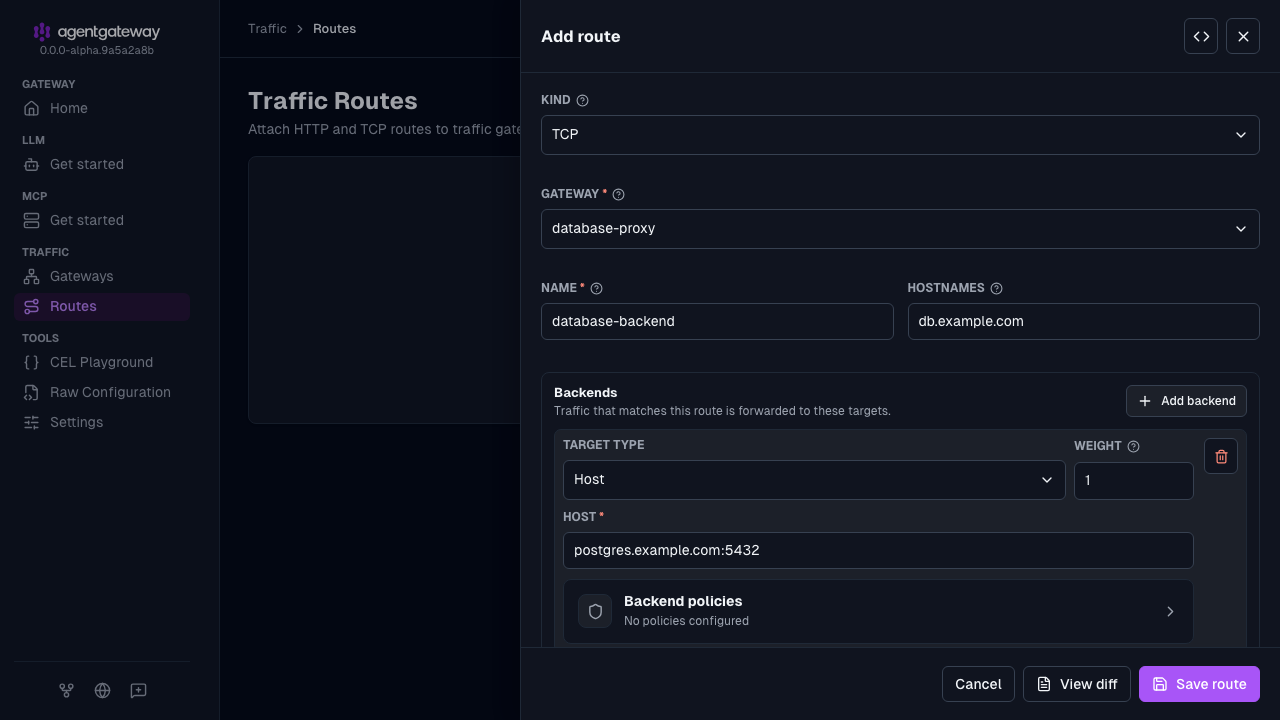
Click Save route.
Backend routing
Route directly to backends. You can include multiple backends and weights to load balance across them.
Higher weights receive more traffic. Each new TCP connection is assigned to a backend proportionally based on the ratio of the weights.
In the following example, traffic is load balanced across the three backends in the ratio 1:2:1. The first backend receives 25% of the traffic, the second backend receives 50% of the traffic, and the third backend receives 25% of the traffic.
If no weight is specified, the default is 1. Backends with a weight of 0 receive no traffic. Each incoming TCP connection maintains a 1:1 mapping with an outgoing backend connection; once a connection is established, it remains bound to its assigned backend for the lifetime of that connection.
The following steps assume that you have a TCP gateway named redis-proxy. To add one, see TCP listeners.
Open Traffic > Routes, and click Add route.
Select TCP as the Kind, select the
redis-proxyGateway, and enterredis-clusterfor the Name.In the Backends section, click Add backend three times. Enter the Host and Weight of each backend.
redis-1.example.com:6379with a weight of1redis-2.example.com:6379with a weight of2redis-3.example.com:6379with a weight of1
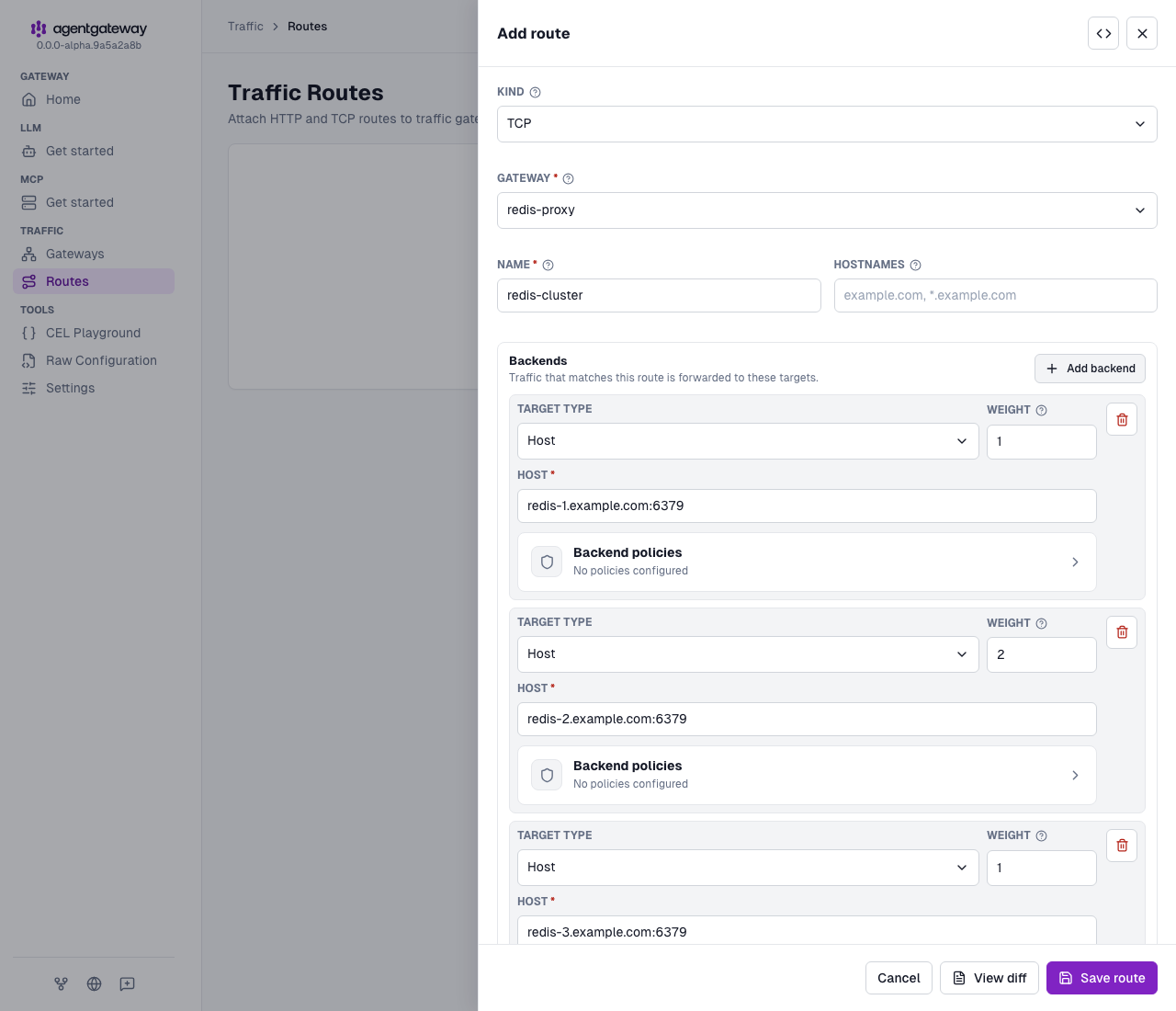
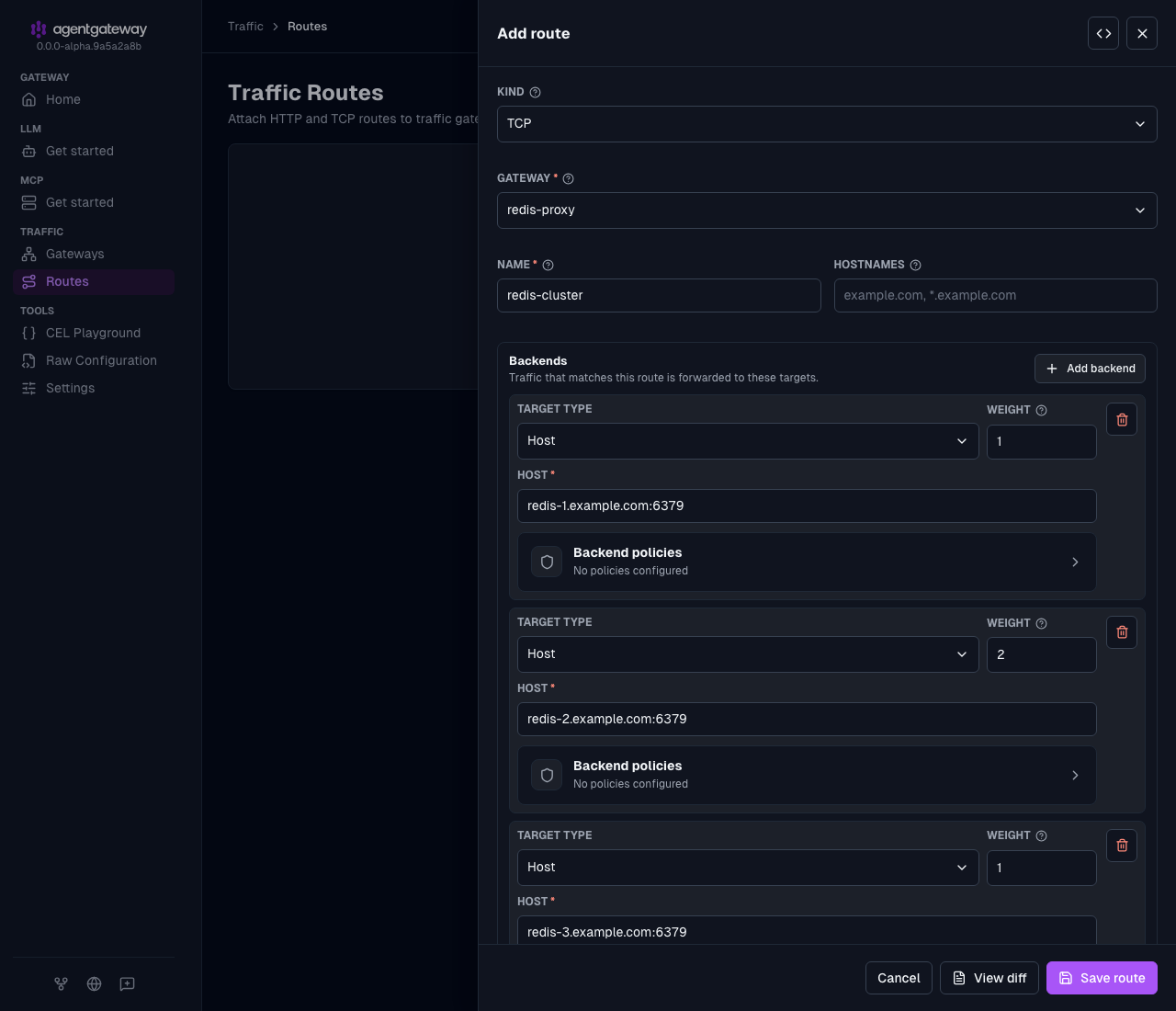
Click Save route.
The UI leaves out weight: 1, because 1 is the default weight.